In this tutorial, we’re going to build a web application with a Microsoft Dynamics CRM 2011 backend. The portal will be using the Microsoft MVC3 framework along with the Razor engine. For the fun of it, I’ll also include a Bing Map.
The Microsoft Dynamics CRM 2011 instance is hosted on the cloud. If you don’t have an account, feel free to register for a free 1 month trial http://crm.dynamics.com/
The entire solution can be downloaded from my shared SkyDrive TechEd2011 folder at My SkyDrive Link.
Step 0 – prerequisites
The solution was built in Visual Studio 2010. I have not tried it with Visual Studio 2010 express, and I am positive it will not work in the express version.
In order to run the solution, you’ll have to install the MVC3 framework (http://www.asp.net/mvc/mvc3) as well as the Silverlight tools for Visual Studio 2010 (http://www.microsoft.com/download/en/details.aspx?displaylang=en&id=18149). Both of those packages are are availalble on my personal shared SkyDrive TechEd 2011 folder.
Optionally you can download the Dynamics CRM 2011 SDK http://www.microsoft.com/download/en/details.aspx?id=24004 (strongly recommended though). However the required DLLs are inclued in the solution.
Step 1 – preparing CRM 2011
The first step would be to prepare your CRM 2011 instance to include the customer regions entity.
Login to your CRM 2011 instance and navigate to Settings->Solutions and click on Import.

In the new window click on the browse button and browse to Regions_1_0_0_0.zip (available on my SkyDrive).
Click on the next buttons until the customisation is imported.

Once the import is done click on the publish all customisation button.

Step 2 Display the regions in your workplace
Once the customisation is imported go to Solutions->Regions. This step will help us display the region entity in our workplace.
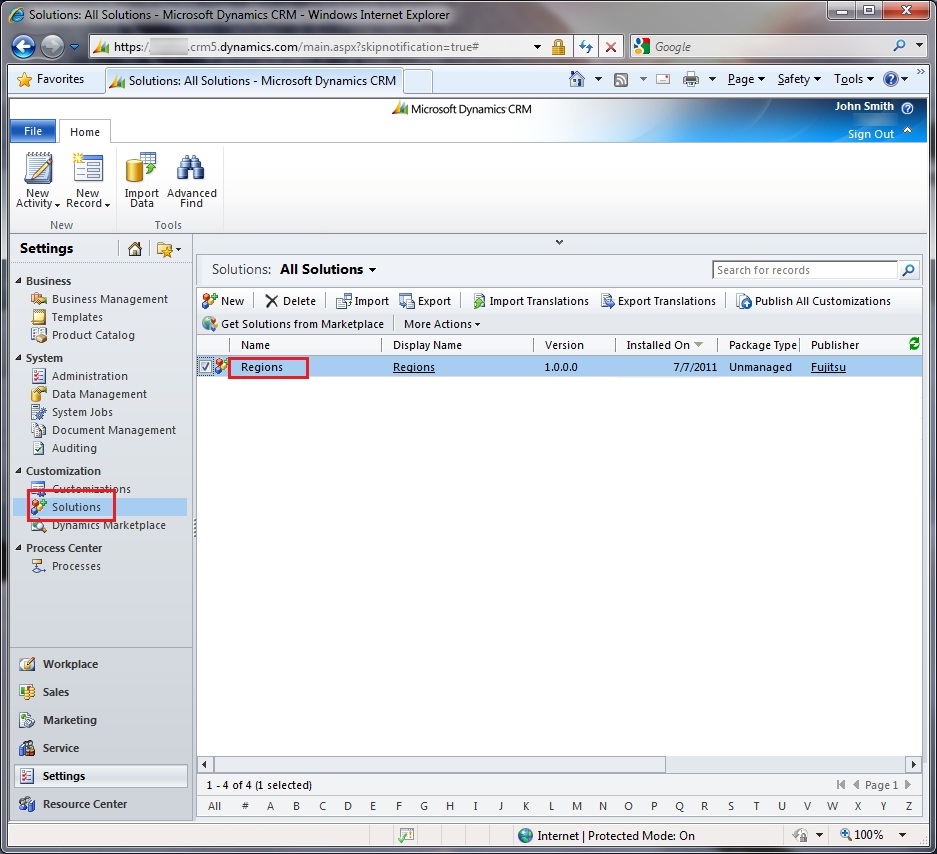
Under the region solution select the region entity.

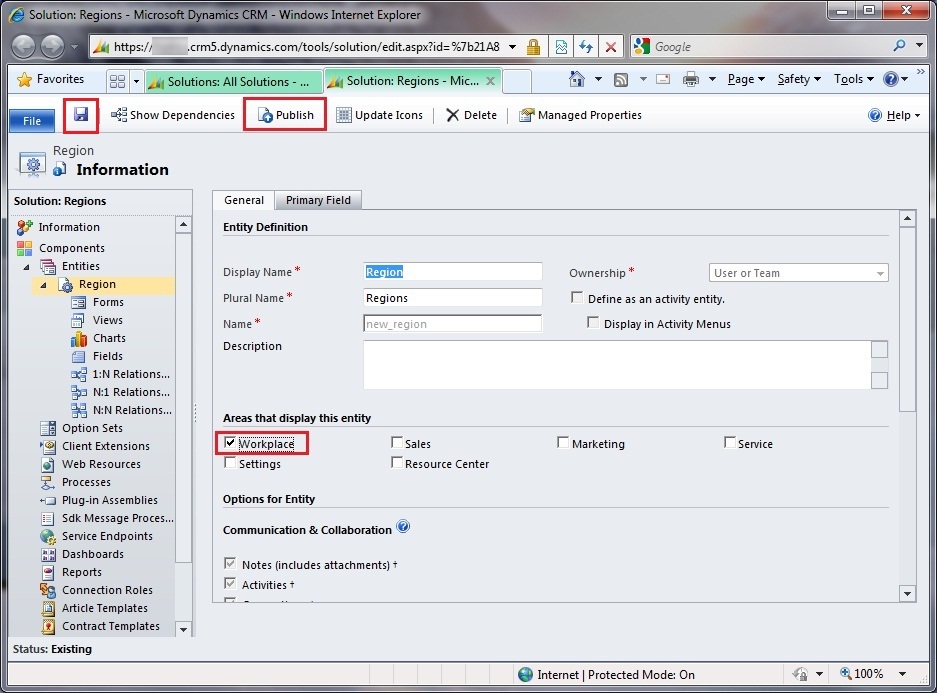
In the region entity click on the Workplace checkbox, then save and publish the entity.
Step 3 Import region records
This step is optional, but it would help you generate sample GIS data for New Zealand regions.
Under workplace->Extensions click on Regions and Import data -> Import Data (if you cannot see regions, refresh the screen using ctrl+f5).

Browse to Region.xml (also available on my SkyDrive folder) and click on the Next button.

On the next screen select the user who is going to own the records and click on submit.

Wait for a few minutes and the regions will be imported (You can click on the Imports link to follow the progress).
Step 4 Setting up the Portal in Visual Studio 2010
In this step we will setup the web.config file to know where your CRM 2011 instance lies in your Visual Studio 2010 solution.
Download the “MVC3 Visual Studio 2010 Sample solution – Final.zip” zip file from my SkyDrive folder. Unzip the solution and open the Microsoft.CRM2011Sample.MVC3.sln solution in Visual Studio.
In Visual Studio update web.config in the MVC 3 to contain the correct CRM information.

The ServerAddress is the same URL that you use to log in to CRM (omit the http).
The OrganisationName can be found by navigating to Setting -> Customizations -> Developer Resources “Organization Unique Name” in CRM.
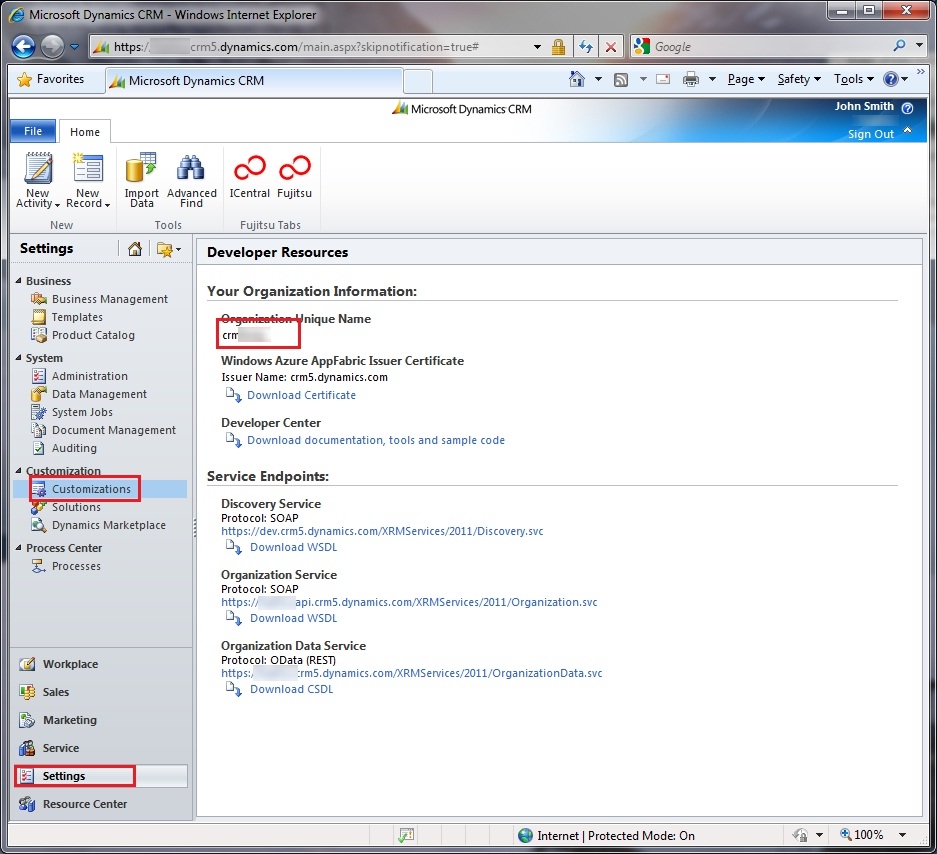
For example if you are using a cloud instance of CRM 2011 the settings are as follows:
<add key=“ServerAddress” value=“<yourorg>.crm5.dynamics.com“/>
<add key=“OrganizationName” value=“<crmorganisationname>“/>
<add key=“SSL” value=“true“/>
<add key=“UseDefaultADCredentials” value=“false“/>
<add key=“Domain” value=“”/>
<add key=“UserName” value=“<liveid>@live.com“/>
<add key=“Password” value=“<password>“/>
Repeat this step for the web.config in the WCF project.
Finally in the BingMap project, update the MainPage.xaml to contain the correct CredentialsProvider (follow this article to obtain a Bing map token if you do not have one http://msdn.microsoft.com/en-us/library/cc980844.aspx).

Run the solution and enjoy the beauty of using CRM 2011 as a backend.
Trouble shooting
If you get an error stating could not load file or assembly ‘Microsoft.IdentityModel, Version=3.5.0.0…’
You need to download the windows identity foundation from http://www.microsoft.com/download/en/details.aspx?displaylang=en&id=17331
I noticed that some people are having issues with my SkyDrive. If you have having any problems connecting, drop me a comment and I’ll send you an alternative link.